 SMBDashboard
Client List Template: The Columns That Earn Their Place
By Mark Fulton · 2026-10-12 · 13 min read
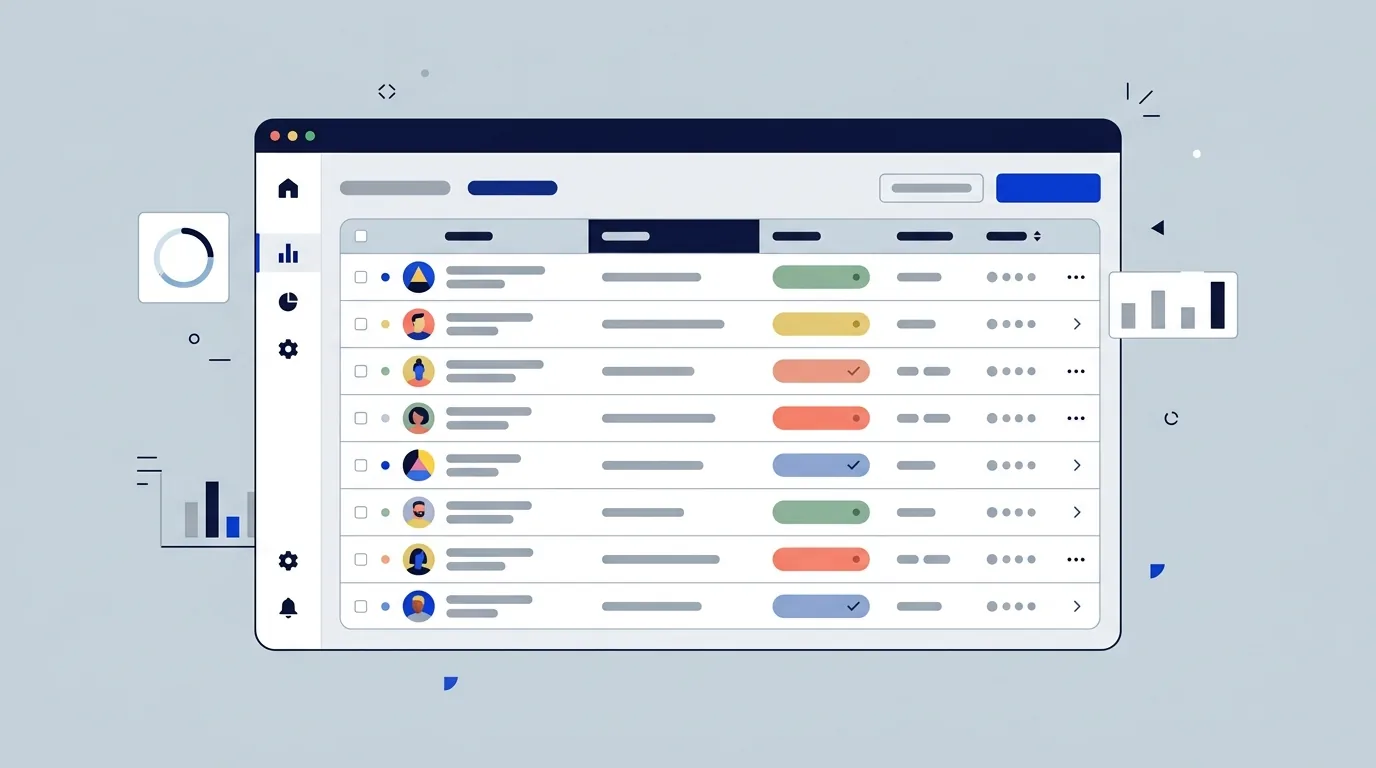
A client list that survives has seven columns: name, phone, email, last contact, next action date, source, and notes. Four of those are plain contact details. The other three do all the work: last contact tells you who has gone quiet, next action date tells you who to reach today, and source tells you where your clients come from. Everything else you will find in a downloadable template, from customer IDs to job titles to deal probabilities, is optional at best and dead weight at worst. Start with the seven, add a column only when you can name the decision it changes, and your list will still be accurate in a year instead of abandoned in a month.
Most client list templates compete on how many columns they offer, as if a bigger grid were a better tool. I build a small-business dashboard, so a client list is something I sell, and I still think the template wins on being short. A column you do not fill in is worse than a column that does not exist, because it makes the whole list look unreliable.
What is a client list actually for?
It has exactly three jobs, and every column should serve one of them.
Reach someone. When a client calls, texts, or needs a reschedule, you need their number or email in under ten seconds. That is the contact-details job.
Remember where you left off. Before you pick up the phone you want to know when you last spoke and what about. That is the history job.
Decide who to contact next. A list that only stores people is an address book. A list that tells you who is due is a business tool. That is the follow-up job, and it is the one most templates skip.
If a column does not help with one of those three, it is storage, not a tool. Storage is fine in a filing cabinet. In a list you open every day, it is clutter that you scroll past.
Which seven columns belong in every client list?
Here they are, with the job each one does.
| Column | Job | What to put in it |
|---|---|---|
| Name | Reach | First and last name, or the business name if that is how you think of them. One column, not three |
| Phone | Reach | The number they actually answer. Mobile first |
| Reach | The one they read, not the one on the invoice | |
| Last contact | History | A date. The last time you and they exchanged a real message, not a bulk email |
| Next action date | Follow-up | A date. When you owe them something: a call, a quote, a check-in |
| Source | Decide | How they found you, in a word: referral, Google, Facebook, walk-by, repeat |
| Notes | History | One line on the last thing that happened and the next thing to do |
Three of these are worth defending.
Last contact is a date, not a description. The temptation is to write "called about the quote" in a text field. Do that and you can never sort by it. A real date column sorts oldest-first, and the oldest dates at the top are your quiet clients. That sort is the most useful thing a client list does, and it needs nothing but a date format.
Next action date is the whole follow-up system. A date in this column means "I owe this person something by then." An empty cell means "nothing pending." Sort ascending, and the top of the list is your day. If you want the full routine around it, I wrote it up in stop losing track of customer follow-ups. Here it is enough to say that a client list without this column cannot tell you what to do next, and the other six cannot make up for it.
Source is one word, picked from a short list. Free-text sources turn into "fb", "Facebook", "facebook group", and "FB ad" within a month, and then you cannot count them. Pick four or five labels, write them on the first row of a notes tab, and copy them. If you want to go further than a column, there is a longer walkthrough in how to track where your customers come from.
Notes earns its place by staying short. One line, overwritten when something changes, beats a paragraph that grows forever. If you need real history, that is a different tool, and the spreadsheet vs CRM comparison covers when you reach that point.
Which popular columns quietly go stale?
This is the graded column bank. I went through the columns that the common free templates include, such as Smartsheet's client list set, the lead-tracker layouts built around statuses and follow-up dates, and the lookup-style customer sheets that Excel template sites publish, and graded each one on a single test: will you still be filling this in six weeks from now?
Keep means it is one of the seven. Optional means add it if the job genuinely needs it. Drop means it goes stale or never gets filled in.
| Column | Grade | The job it does | Why it earns or loses its place |
|---|---|---|---|
| Name | Keep | Reach | Without it there is no list |
| Phone | Keep | Reach | The fastest way to reach most clients |
| Keep | Reach | Needed for quotes, invoices, and anything written | |
| Last contact | Keep | History | The one column that finds quiet clients |
| Next action date | Keep | Follow-up | The one column that tells you what to do today |
| Source | Keep | Decide | Tells you where to spend your next hour of marketing |
| Notes | Keep | History | One line, overwritten, never an essay |
| Company or business name | Optional | Reach | Worth it only if you serve businesses. For individuals it is a blank column |
| Status (lead, client, past client) | Optional | Decide | Useful if you mix prospects and paying clients in one list. Keep it to three values |
| Service address | Optional | Reach | Essential for on-site trades such as cleaning or landscaping. Dead weight for remote work |
| Tags or category | Optional | Decide | Fine for five or six labels. Past that, you stop trusting them |
| Customer ID | Drop | None | Useful when a database joins two tables. In a list you read with your eyes, the name is the ID |
| Contact title or job title | Drop | None | Rarely changes a decision. Goes stale the first time someone changes jobs |
| Website | Drop | None | You will never open it. If it matters, put it in notes |
| Industry | Drop | None | Sounds useful, rarely sorted on. Tags do this better if you need it |
| Sales rep or owner | Drop | None | There is one of you. If a second person arrives, add it then |
| Deal size, probability, weighted forecast | Drop | None | Pipeline math built for sales teams. For most owners these are guesses that look like data |
| Call duration and call time | Drop | None | Nobody reads a log of how long calls lasted |
| Fax number | Drop | None | Still appears in some downloadable templates. Delete it |
| Birthday | Drop | None | Gets filled in for the first ten clients and never again |
| Rating or star score | Drop | None | A number you invent once and never update. Notes carry the same information better |
| Mailing address (when you never mail) | Drop | None | Collecting it creates a column of blanks and extra personal data to look after |
The pattern in the drops is the same every time. Each one needs information you do not naturally have at the moment you add the client, so the cell stays empty. An empty cell is not neutral. It teaches you that the list is incomplete, so you stop trusting the rest of it too.
A word on personal data. Every extra column about a person is another thing you are holding about them. If you never use birthdays, do not collect them. A shorter list is easier to keep tidy, easier to hand to an accountant or a new assistant, and easier to delete a person from if they ask.
How do you record last contact without a CRM?
Without software logging it for you, last contact only works if the rule for updating it is simple enough to follow without thinking. Use this one.
Update it when a real exchange happens. A call that connected, a text that got a reply, an email they answered, a visit. Not a mass newsletter, and not a voicemail you left. The date means "we last actually talked."
Update it in the same minute. Not at the end of the day. Before you put the phone down, change the date and rewrite the note line. If you batch it, you will forget half of it, and the half you forget will be the ones that mattered.
Set the next action date every time you touch a row. This is the habit that matters. After every contact, ask yourself one question: do I owe this person anything? If yes, put a date in the next action column. If no, clear the cell. A row with a stale next action date is a promise you have forgotten you made.
Use a date format, always. Format the two date columns as dates, not text. Then sorting works, and you can add a rule that colors any next action date earlier than today. In Excel and Google Sheets that is one conditional-formatting rule, and it turns the list from something you read into something that points at the work.
That is the limit of what a spreadsheet can do here. It will color a late date, but it will not show you that date unless you open the file. If that gap is where you keep losing clients, the spreadsheet is not the problem. The missing reminder is.
How do you keep one list across phone, email, and texts?
Clients reach you in three places, and every place is a chance for the list to fall behind. The fix is not a better template. It is a rule about where the truth lives.
One list is the master. Your phone contacts, your email address book, and your texts are all views of people. The client list is the only place that holds last contact, next action, and source. Never let a second place start doing that job.
Add the client to the list first. The moment a new person becomes a real client or a real prospect, they get a row, before you save them in your phone. This order matters because your phone will happily keep a number forever without telling you anything about the relationship.
Do a two-minute sweep when you open it. Glance at your last few texts and emails. Anyone you talked to since the last update gets a new last contact date. You are not rebuilding the history, only closing the gaps from the past day or two.
Keep the file where you can open it on your phone. A client list you can only reach from one laptop is a list you update on the weekend. Put it somewhere your phone can open, such as a synced sheet, so the update happens while the conversation is fresh.
If you want this to happen with less discipline, a tool can do part of it. The customers module in SMBDashboard keeps the same seven kinds of information, shows due follow-ups on the screen you already open, and holds up to 25 customers on the free tier. Your data stays in your browser unless you turn on Pro sync. It is one option, not a requirement.
How do you move the list into a tool later?
A time will come when the spreadsheet stops being enough. Usually it is when a second person needs to edit the list, or follow-ups keep slipping because nothing reminds you. The free CRM for small business page covers what to look for, and the move itself is simpler if you plan for it from the start.
Keep one header row and one row per client. No merged cells, no blank rows used as spacing, no colored section banners in the middle of the data. Tools read a clean grid and choke on a decorated one.
Keep one value per cell. Do not put two phone numbers in one cell, or a name and a company together. If a client has two numbers, use two columns. Import tools map one column to one field.
Use real dates. If you followed the rule above, the two date columns are real dates and will import as dates. If any are typed text such as "next Tuesday", fix them first. Free-text dates are the single most common reason an import goes wrong.
Export as CSV. CSV is a plain text format that almost every tool can read, and it strips out formatting that confuses importers. Microsoft documents how Excel saves and opens CSV text files, and Google Sheets lists the file types it can read in its guide to importing data and spreadsheets, CSV among them.
Import, then check ten rows by hand. Open ten clients in the new tool and compare them against the spreadsheet. Check one with an accent in the name, one with a long note, and one with a date. If those three come across cleanly, the rest will too.
Keep the original. Do not delete the spreadsheet after you import it. It costs nothing to keep, and it is your only way back if a field was mapped wrong.
Because you kept your columns to seven, there is almost nothing to remap. That is the quiet advantage of a short list: the move is a ten-minute job, not a weekend. If you ever leave a tool, plan the same way. CSV export in SMBDashboard is a Pro feature, so check that any tool you pick lets you take your list back out before you put it in.
Frequently asked questions
What should be included in a client list?
Seven things: name, phone, email, last contact date, next action date, source, and a one-line note. The first three let you reach the client. The last four tell you where the relationship stands and what to do next. Add company name, status, or a service address only if your work genuinely needs them. Skip anything that you would have to look up rather than already know when you add the client.
Is a spreadsheet good enough for a client list?
For most owners with a few dozen clients and no one else editing the file, yes. The seven-column version sorts, filters, and does the job in Excel or Google Sheets without any extra tool. It stops being enough when a second person needs to edit it, or when follow-ups slip because the spreadsheet cannot remind you. Those are mechanical limits, not size limits, and the spreadsheet vs CRM post walks through them.
How do I keep a client list up to date?
Update the row in the same minute as the contact, and set the next action date every time you touch it. Those two habits matter more than any template. Once a week, sort by last contact and look at the oldest rows, which are the clients who have gone quiet. A list you only update in batches drifts, and a drifting list stops getting used.
Can I import a client spreadsheet into another app?
Usually, yes. Save the sheet as a CSV file with one header row, one row per client, and real dates, then use the import option in the new tool and map each column to a matching field. Check a handful of imported records against the original before you rely on them, and keep the spreadsheet as a backup. Tools that cannot import a CSV, or that will not let you export one later, are worth avoiding.
If you would rather skip the spreadsheet, copy the seven columns above into whatever you already use, or add your first 25 clients to the customers module free. No account, and your data stays in your browser unless you turn on Pro sync.